

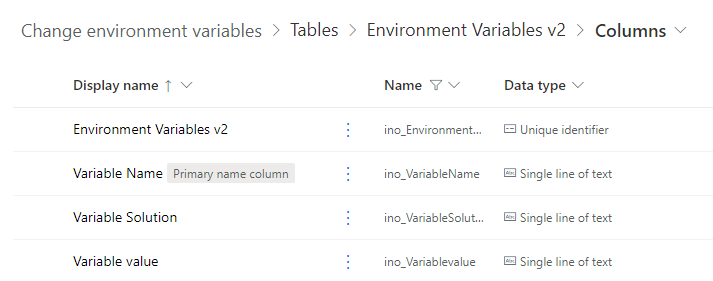
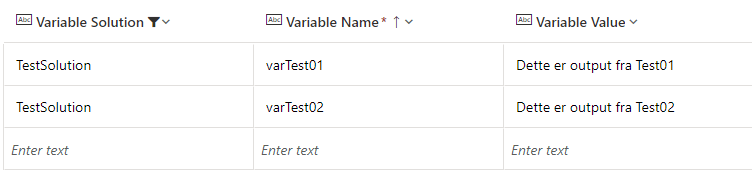
The first thing I do, after creating the solution is to add the data source. I create a table with columns for solution, name of variable and value of variable
Microsoft wants us to use managed solutions in a production environment. That’s all well and good, but what if you have variables in the solution that change over time? Then you have to change the variable in the development environment, move it through test to prod and test it on the way. This is tedious and time consuming.
Earlier this year I was at the DynamicsMinds conference in Slovenia. In the very first session, I listened to Agnius Bartninkas who spoke about external variables. Bingo! This is the way to solve it. When I got home I started working on a solution and this is the one I now want to share with you. In my example I am using Dataverse as this is a secure place to store data. If you do not have access to Dataverse, you can, for example, save the variables in a Microsoft List, Excel sheet or a csv file.
The table and the app
I then add the connection references I need. In my case, I need one for Dataverse and one for Outlook. I like to make them before they are being used so I can give them good names thats are also reflected in the logical name that cannot be changes later.
It’s now time to create the app. You can create the app using the “Start with Dataverse” option on the Power Apps portal. You will get an app that covers your needs, but might not be just like you want it. Tweek it like you want to, as long as you make it possible to edit the value of variables, but not to add or change the solution names or variable names. My app looks like this, but your app might look different.

Here comes the flows!
The best part is always the flows =) I have 3 flows in my solution.
- CF – Get environment variable (just one)
- CF – Get environment variables for a solution (all of them)
- Testflow (so an now it works)
CF – Get environment variable
Sometimes you know you just need one variable. For me, that will be when I just need it for the errorhandling email. Here is the flow for you
Because it runs as a child flow, I use the Manually trigger. I put in the input I need – the solution name and the variable name.

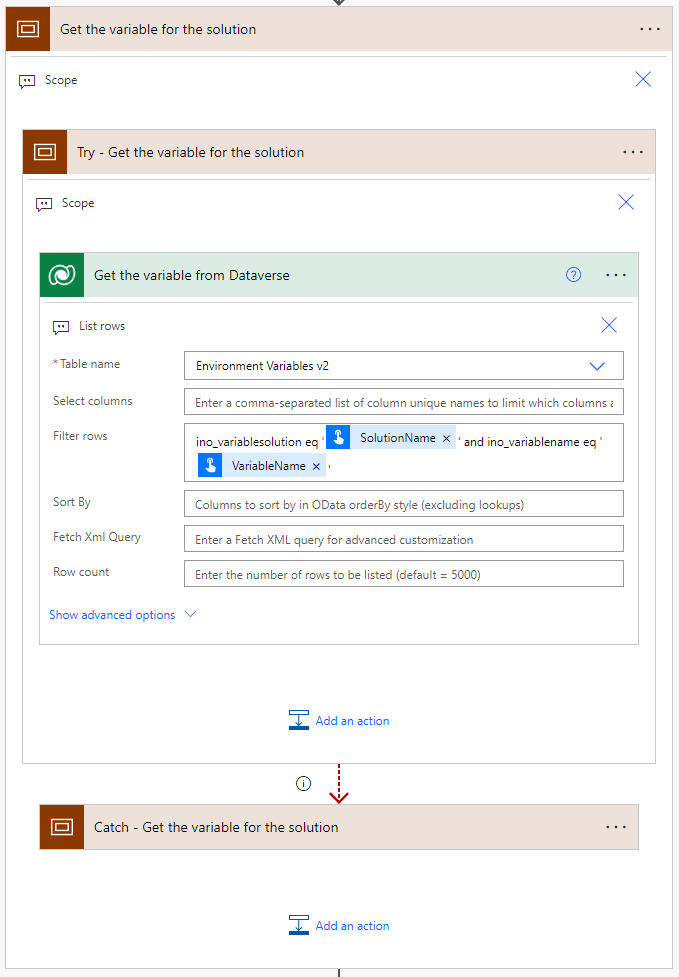
Now it is time to get the data from Dataverse or whatever datasource you use. In the “Filter rows” field, you put the logical name of your solution column and variable name columns and check if they are the same as the input you get. Remember the ‘ ‘ around the variables.
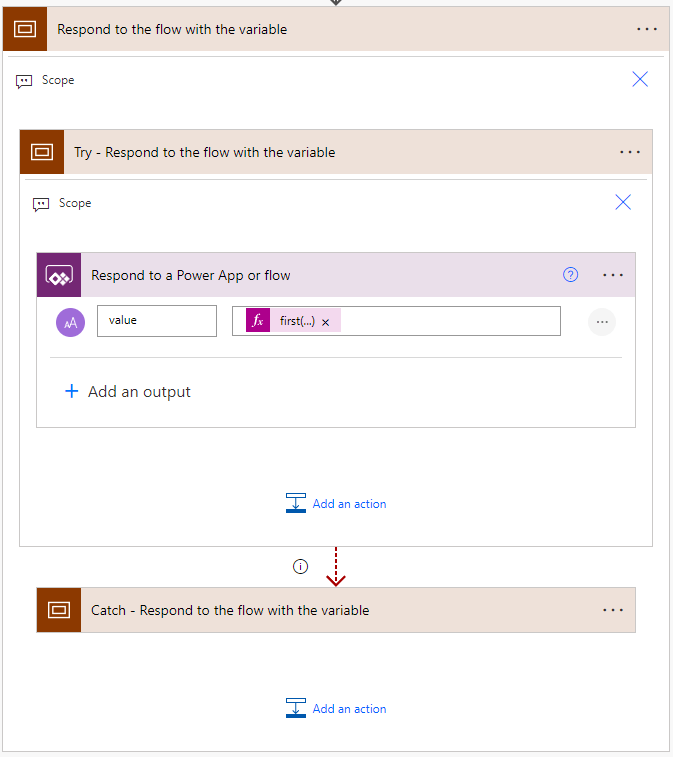
The last thing you do is to give your response back to the parent flow, and that is it! In the value I have the expression “first(body(‘Get_the_variable_from_Dataverse’)?[‘value’])?[‘ino_variablevalue’]”. This is because I want to avoid unnecessary “Apply to each” actions.
Easy right? We keep it simple when we move to multiple variables, but we need to get into som JSON.
CF – Get environmental variables for a solution
We start out the same way as the last one, but we only need one input – the name of the solution. I also need to add a variable for my JSON string and make it start with the curly bracket
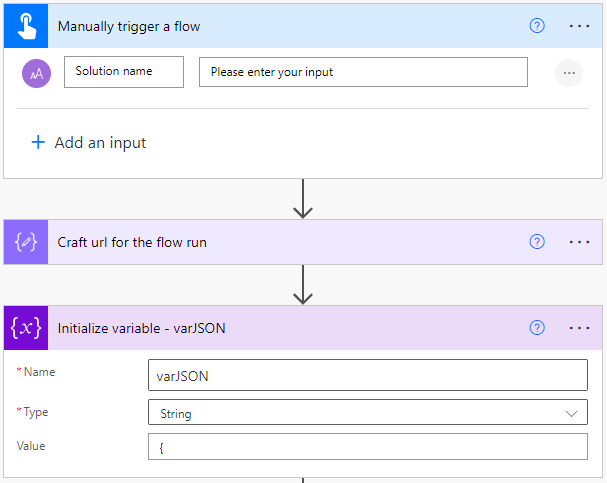
Next up I connect with the datasource and get the rows that has my solution name

I then iterate through them and add them to the variable I created in the previous step with the name first and then the value. Don’t forget to put the ” ” around the variables and the : between them.
To complete the JSON string I add a curly bracket at the end.

Last, but not least – I add my response – this time in the form of the output of the compose action.
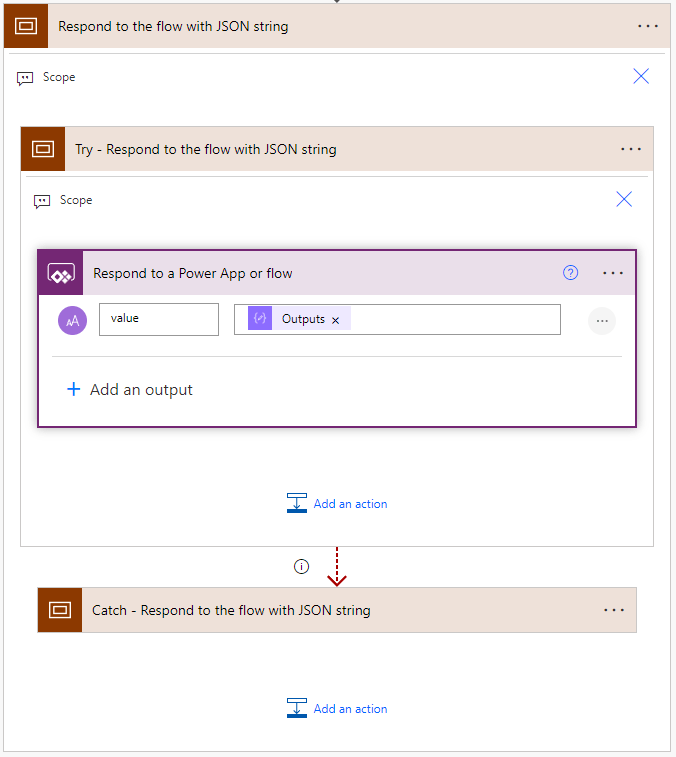
Now our solution is are finished and ready to go. Or is it? I like to test it when I move it to a new environment, so I have added a testflow for this purpose. Why not share it with you =)
Testflow
This flows calls up each of the child flows we have created and shows the results. Before you test it, you have to add some lines into your table. I use the solution name “TestSolution”, but you can call it whatever you want. Put in at least two variables and you are ready to go!
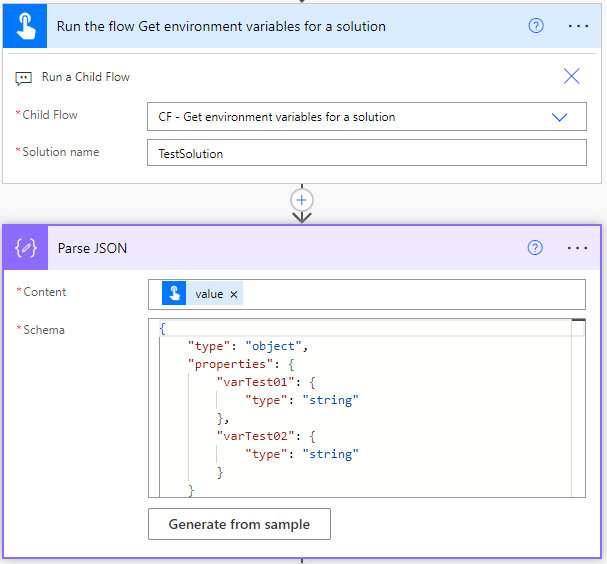
I manually trigger the flow, because it is easy. There is no need for any incomming variables here. I call up my first child flow and store the result in a compose action.
For the flow that gets multiple variables I need to do a little more. First of I call it up. I then add a Parse JSON action and put in my schema. If you need help with the schema – just run the flow once and paste the result you get from the Run a child flow action into “Genereate from samle”.
I put the output into two compose actions just to show them off at the end – and that was it!
You can also use external variables in Power Apps. Just add a flow to your app and get them in there.
If you get something out of this, I love to hear from you – or maybe you have a different way to do it that can give me som new knowlegde?
Have an awsome day!

 Tonje’s Tech Terrain: Navigating Microsoft 365, Power Platform, and Dynamics
Leave a comment